Turn your WhatsApp catalog into an ordering website
Catalog Export · Updated 22 October 2026
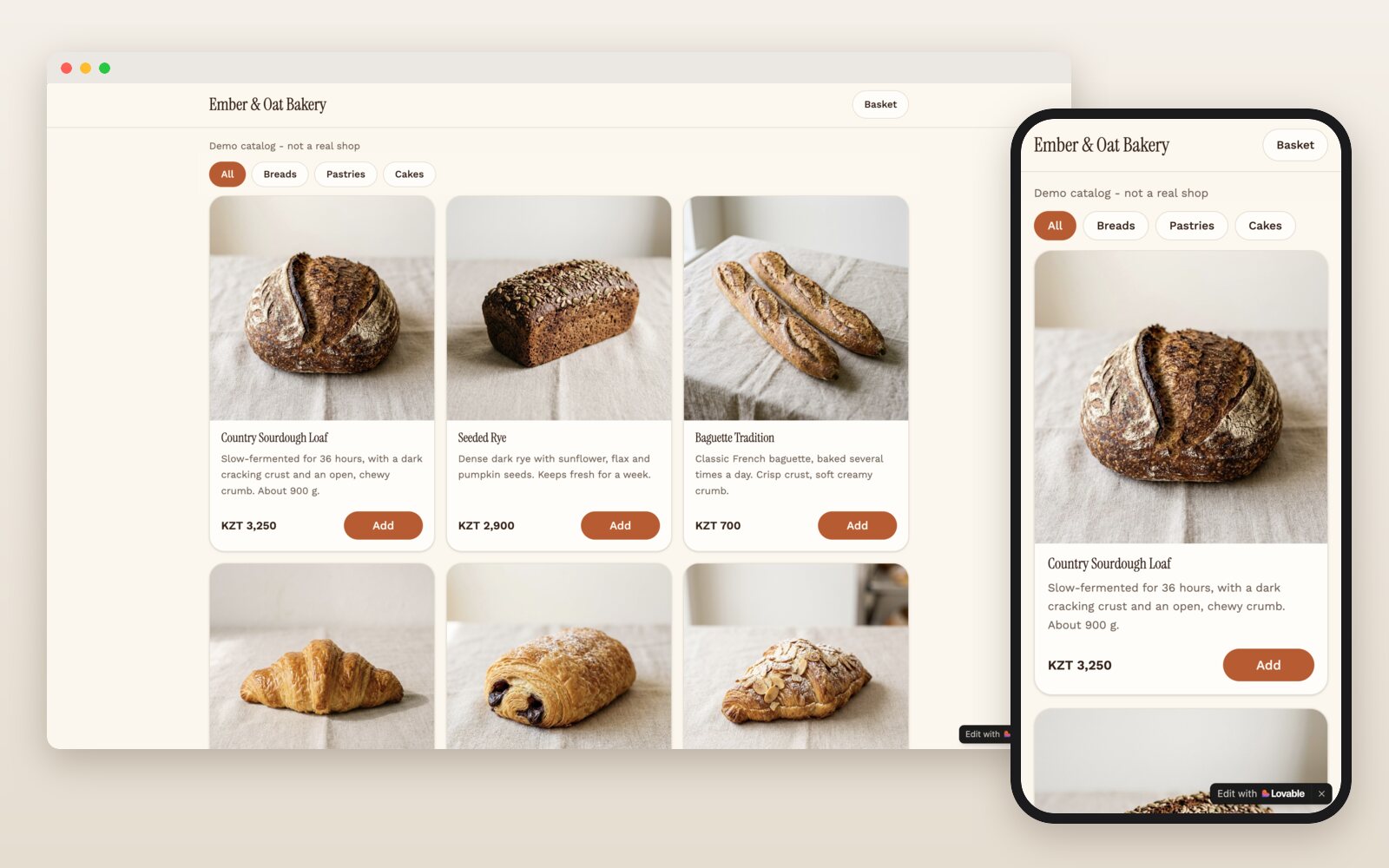
Customers browse your products, fill a basket and send the order to your WhatsApp as a ready-made message. No code and no monthly fee: you export the catalog with a free Chrome extension, and Lovable, an AI website builder, makes the site from it.
What you need
- A WhatsApp Business account with a catalog.
- Chrome on a computer, with WhatsApp Web.
- A free Lovable account.
Step by step
-
Export your catalog
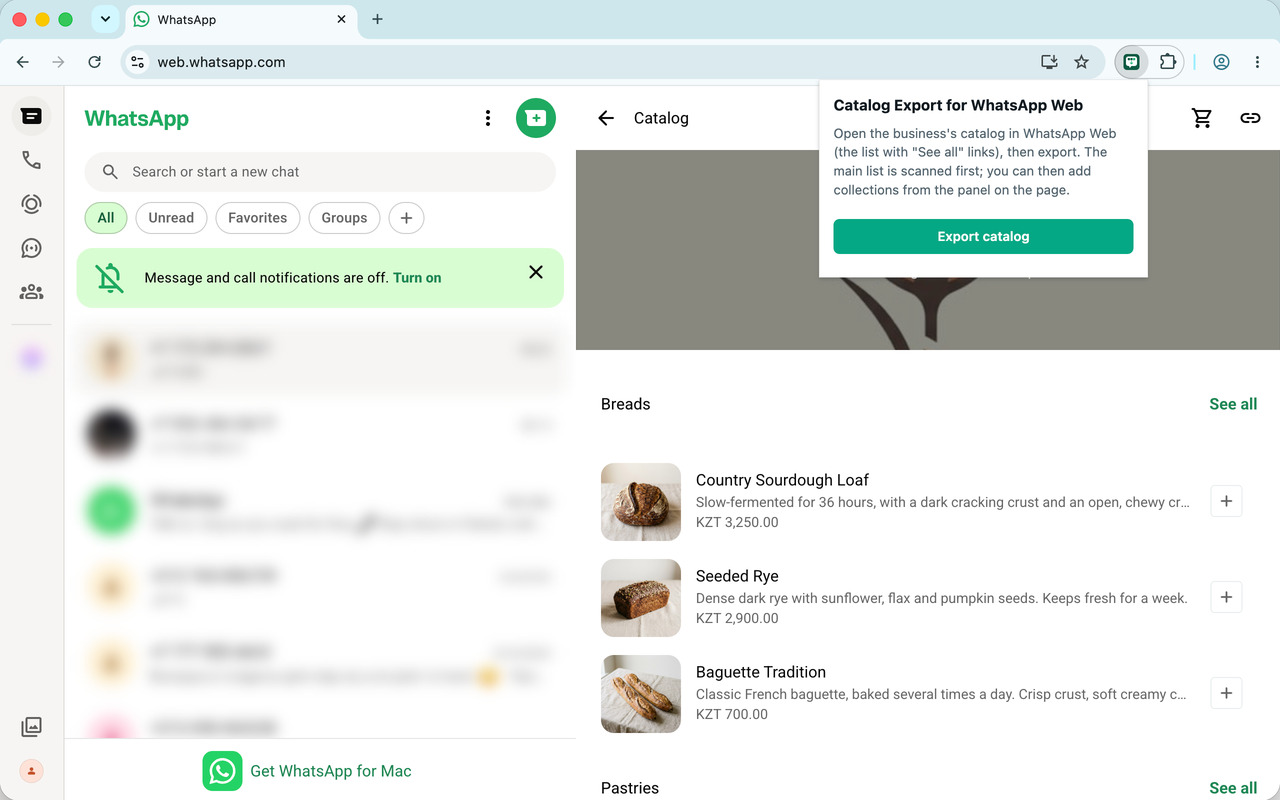
Install Catalog Export, a free Chrome extension. In WhatsApp Web, open the chat with yourself, click your name at the top, then Catalog. Click the extension icon, then Export catalog, and download the ZIP when the panel is done. Keep it zipped.
Products in collections or with several photos: see how to export a catalog.
-
Start a project in Lovable
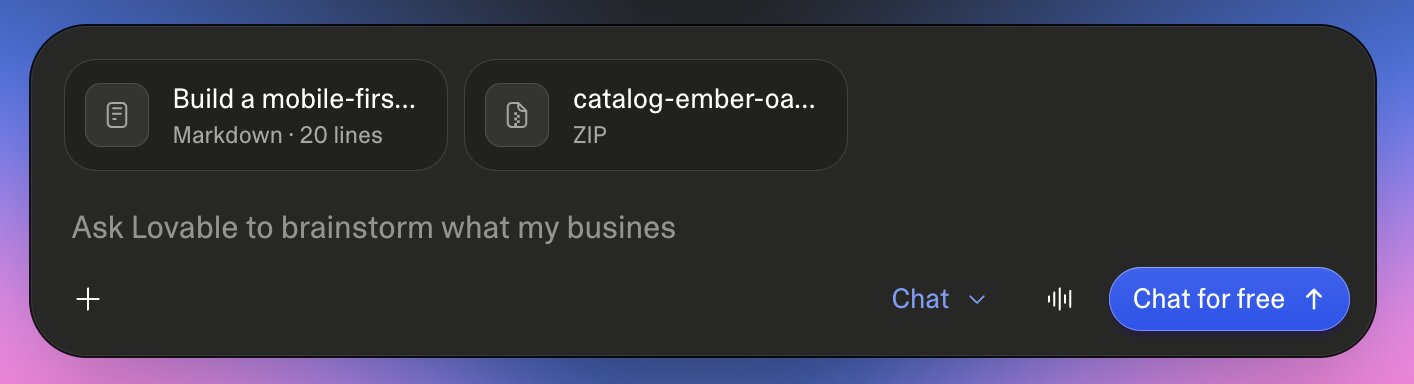
Sign up at lovable.dev. In the message box on the start page, attach the ZIP file. If you have a logo, attach it too.
-
Paste the prompt and send it
Type your business's WhatsApp number in the box above the prompt: it replaces +000 000 000 000. Copy the prompt and paste it into the same message: Lovable shows a long paste as an attachment (“Markdown · 20 lines”) next to the ZIP. Send it with the arrow button. When Lovable asks Create a new project?, allow it with the blue button. Building takes a few minutes.
Prompt for LovableBuild a mobile-first ordering website from the WhatsApp Business catalog export in the attached ZIP. Data — use only what is in the ZIP, never invent products, descriptions, prices or categories: - items.json: the business name and description, and every product with its title, description, collections and photos (in images/). - items.csv: the same products with the price as a number and its currency in their own columns. If a price is empty, show price_text instead and treat the product as "price on request". - Categories are the products' collections. Products without a collection appear only under "All". - Don't add facts about the business that aren't in the ZIP: no city, opening hours, slogans or reviews. - Show every photo of a product, not just the first. - Write the site's texts in the catalog's language; if it is a right-to-left language, lay the site out right to left. Ordering — no accounts, payments or database; the order is a WhatsApp message: - Customers add products to a basket, change quantities and remove items. Keep the basket in the browser so a page reload doesn't empty it. - At checkout, ask for the customer's name, pickup or delivery (with the address for delivery) and an optional note, then show the order summary. - "Send order on WhatsApp" opens https://wa.me/<number>?text=<message, URL-encoded>. The message lists each line (quantity × title, subtotal), the total in the catalog's currency (noting any items with price on request), then the name, pickup/delivery with address, and the note. - The business WhatsApp number is +000 000 000 000 (in the link: digits only, with the country code, no + or spaces). Design: - The "Add" button and the − quantity + stepper that replaces it have the same size and place, so the product card never changes shape. - If a logo is attached, use it in the header and as the favicon; otherwise use the business name as a text logo and its first letter as the favicon. Don't keep Lovable's favicon. - Page title, description and share image are the business's; no Lovable or Twitter handles in the meta tags.
-
Check it and publish
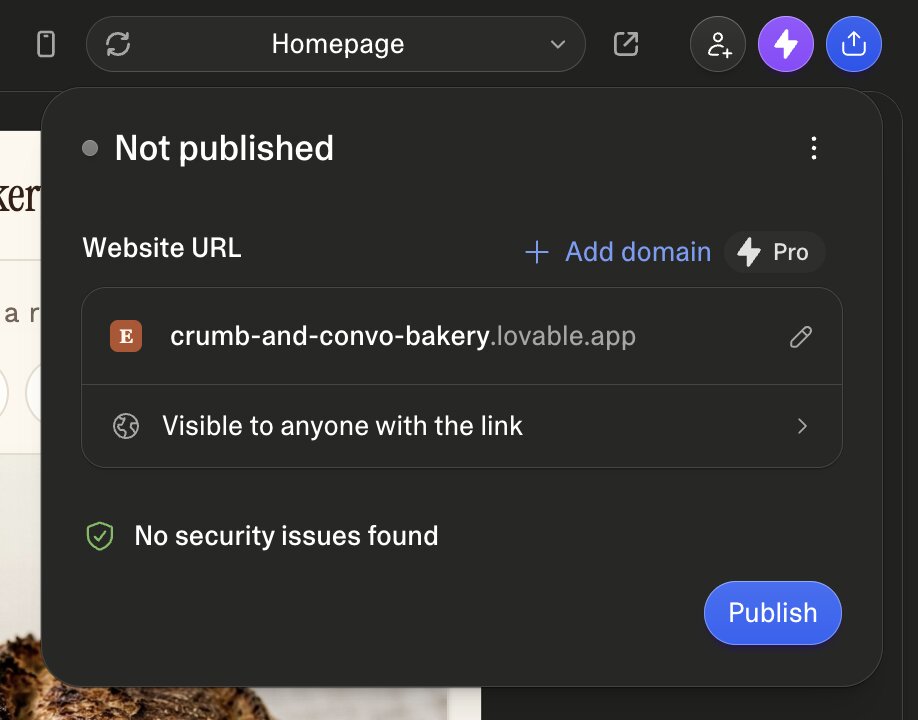
Click through the preview: categories, photos, prices, the basket. The phone icon above it switches between phone and computer size. Something off? See fixes below. Then click the blue button at the top right, and Publish. Lovable picks the site's address, ending in
.lovable.app; the pencil next to it changes the first part. Once it's live, put the address in your WhatsApp Business profile, your status and your social media.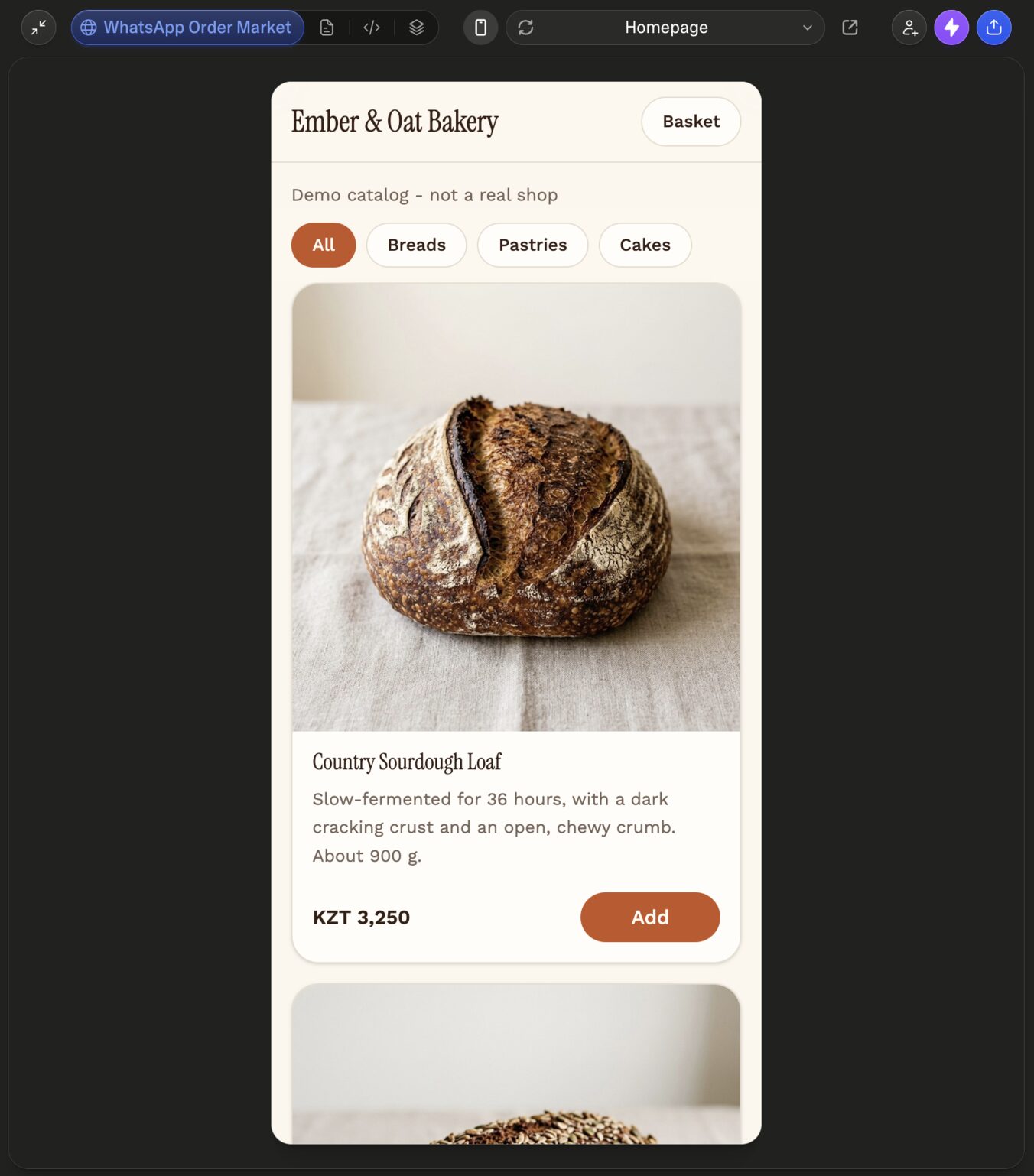
-
Place a test order
Open the site on your phone, add a few products and tap Send order on WhatsApp. WhatsApp opens with the order written out; send it, and it arrives in your business's chats. Test from a different WhatsApp account than the business's: from the same one, it opens the chat with yourself.
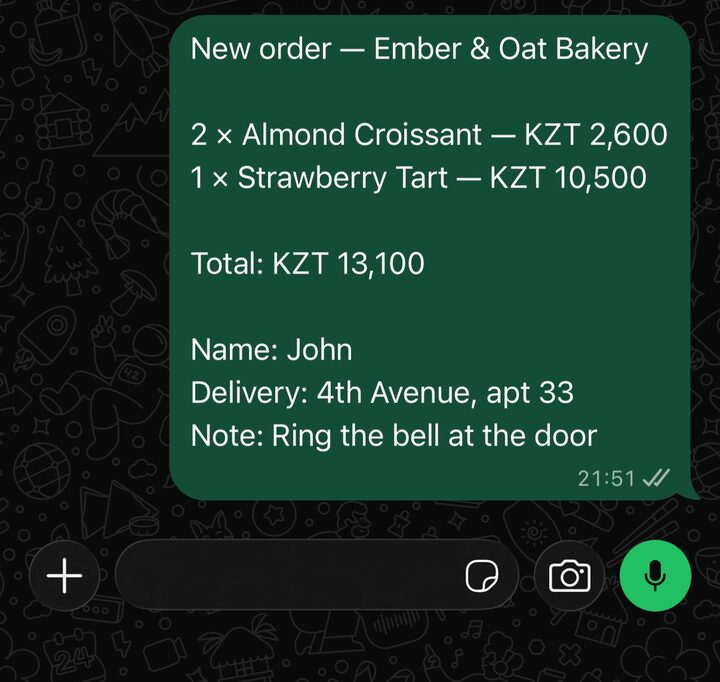
Sent by the customer 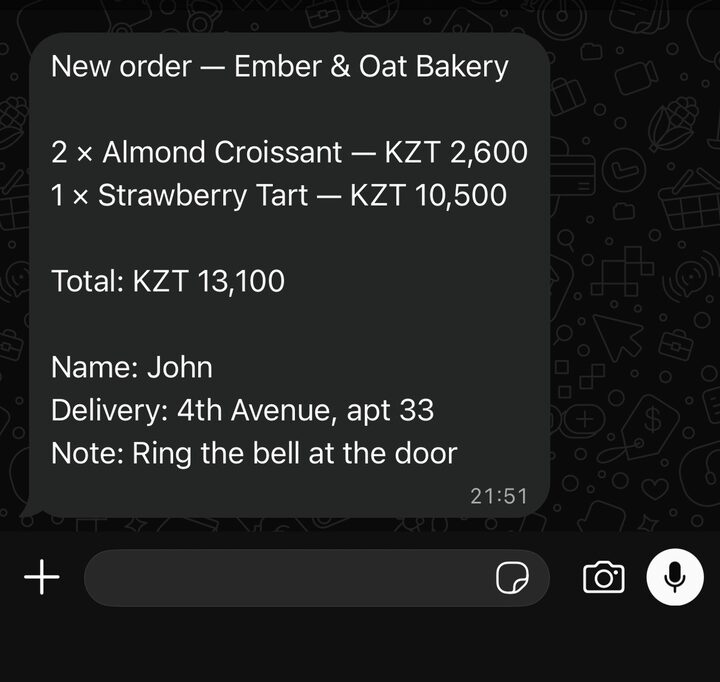
Received by the business
If something isn't right
Tell Lovable in plain words, as a new message. For example:
- The WhatsApp button opens the wrong chat: “The WhatsApp number is +44 7700 900123.” Use the full international number.
- A product, price or photo is wrong: name the product and say what it should be: “The Carrot Cake costs 11,000 ₸, as in items.csv.”
- Colours and style: “Use our colours: dark green #0E5A43 and cream. Make it feel like a family bakery.”
- A delivery fee: “Add a 500 ₸ fee to delivery orders, in the basket total and in the message.”
- Your catalog changed: export it again, attach the new ZIP and write “Replace the products with the ones in this ZIP; keep the design.”
What's free and what isn't
- Lovable's free plan gives you a few credits every day; each message uses some. In our tests one message built the whole site, for a 12-product bakery and for a 95-product restaurant menu, so a site and a few fixes fit in it.
- On the free plan the address ends in
.lovable.appand the site shows a small “Edit with Lovable” badge. Your own domain (likeyourshop.com) needs a paid plan: see Lovable's pricing. - Catalog Export is free, and there's no fee per order: orders are WhatsApp messages.
Questions
Do I need to know how to code?
No. You attach a file, paste a prompt, and ask for changes in plain words.
Can customers pay on the site?
No. The order arrives as a WhatsApp message; you confirm it and agree on payment and pickup or delivery in the chat, as you do now.
My catalog changes often. Do I start over each time?
No. Export it again, attach the new ZIP to your Lovable project and ask it to replace the products and keep the design.
Can I make one for a client?
Yes, with their OK: open their business's chat in WhatsApp Web, then its profile, then Catalog, and export it. The products and photos are theirs, so build the site with them, not without them.
Where does my catalog go?
Catalog Export sends nothing anywhere: the ZIP is saved on your computer (see the privacy policy). When you attach it in Lovable, Lovable gets the products and photos to build your site, under Lovable's own terms.
Can I use v0, Replit or Bolt instead of Lovable?
v0 and Replit worked: we gave each the same ZIP, a 95-product restaurant catalog, and the same prompt, and both built a working ordering site. Bolt didn't accept the ZIP file when we tried (October 2026). The steps above show Lovable; in the others, attach the ZIP and paste the prompt the same way.
Is Catalog Export part of Lovable or WhatsApp?
No. It's an independent extension, not affiliated with Lovable, WhatsApp or Meta.